Members Portal – guide
Logging in:
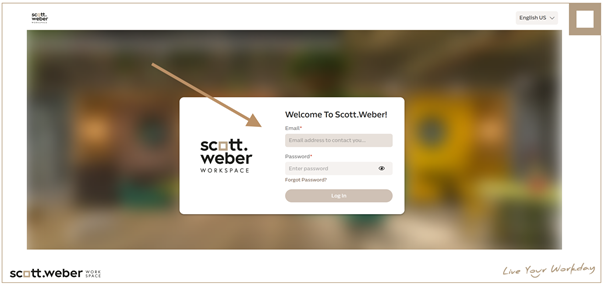
Log in using your work email and the password you chose when registering for the portal.
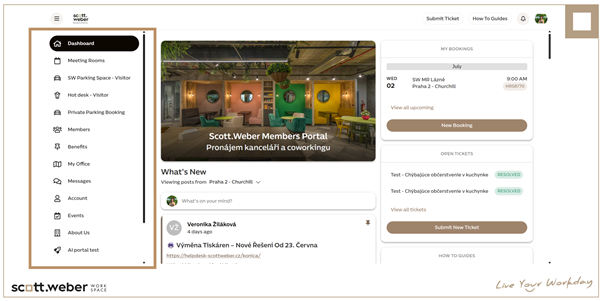
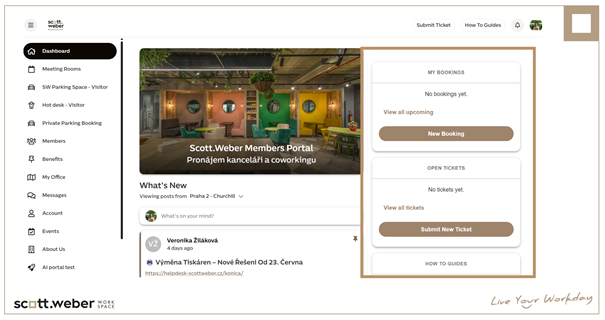
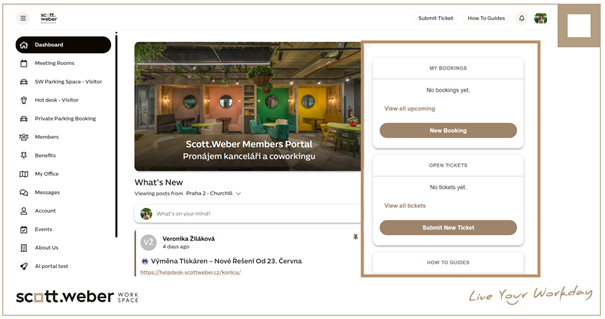
After logging into the Members Portal you’ll see a panel with a list of services on the left side of the screen.
On the Dashboard tab, you’ll see news updates. The updates are sorted according to your default location – news from your location is shown first, followed by company-wide updates.
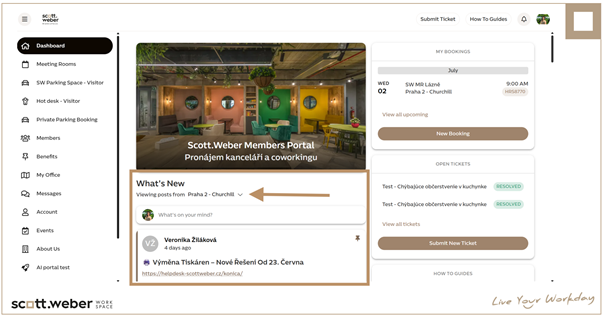
On the right side of the screen, you’ll see your open meeting room bookings or open tickets for reception.
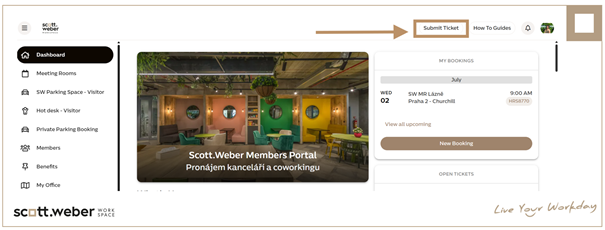
You can create a meeting room booking or submit a ticket by clicking the brown button.
Booking a meeting room:
On the left panel, click on Meeting Rooms.
In the top right corner, click on the filter icon and select the location where you want to book a room. After entering your preferences, confirm your selection by clicking Apply.
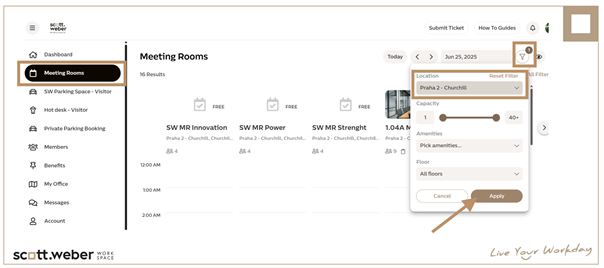
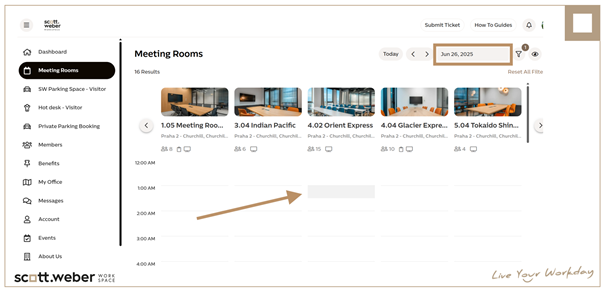
Next to the filter icon, select the date for your meeting room booking.
In the chosen meeting room, select the booking time and fill in the required details for the reservation.
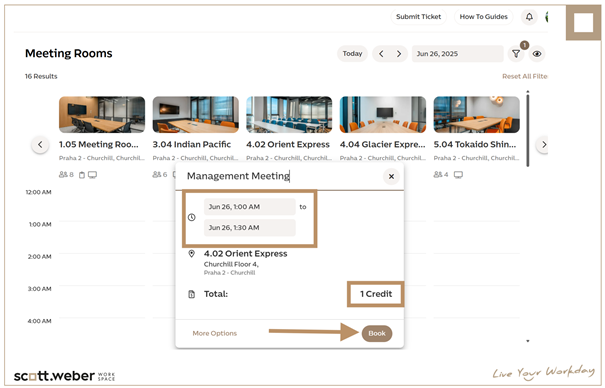
Based on the selected time in the meeting room, you will see how many credits the reservation will deduct. You can still adjust the reservation time before confirming. Then, confirm the reservation by clicking the Book button..
Booking visitor parking spaces:
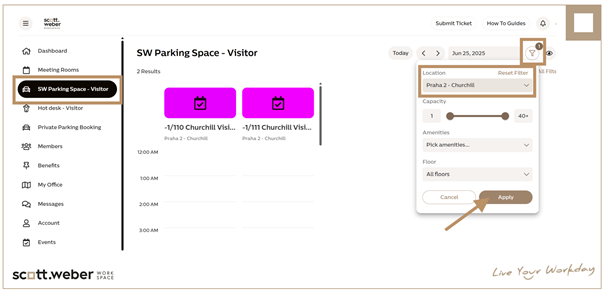
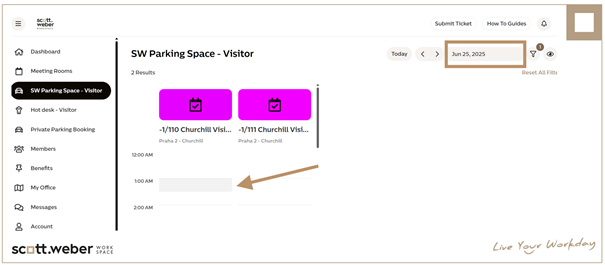
Submitting a ticket:
If you notice an issue you’d like to report to reception — or on the contrary, if you want to send us positive feedback — you can communicate with us via tickets. How to do that?
In the top right corner of the page, click the Submit ticket button.
Fill in all fields, select the correct issue category and its severity, and click Report.
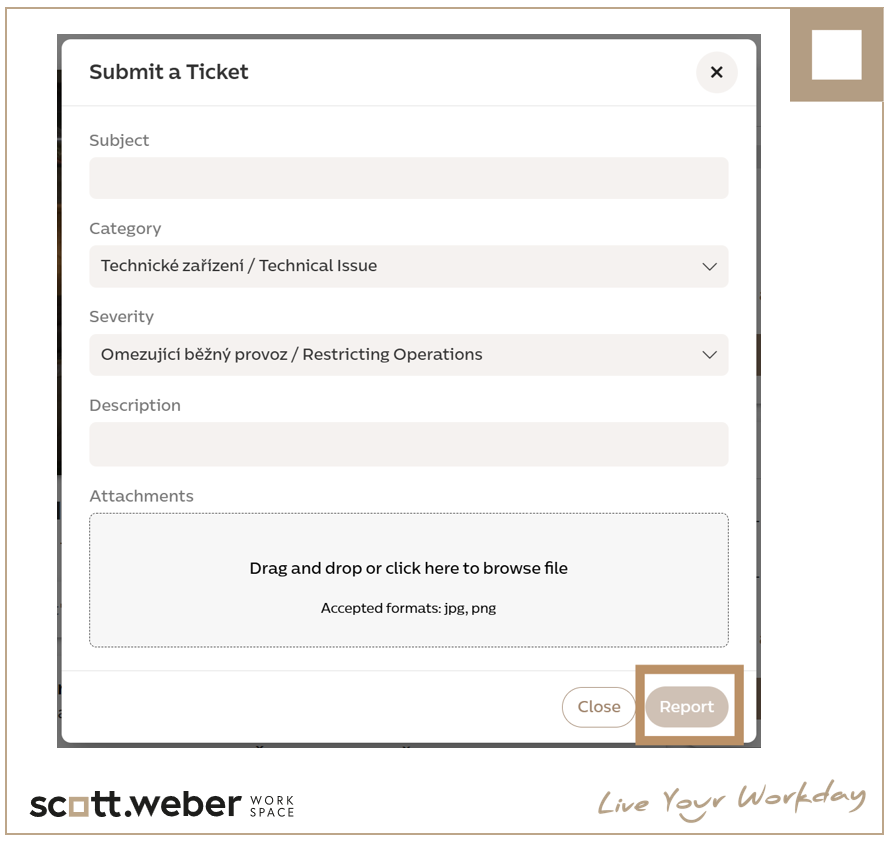
Subject – A phrase that best describes what you want to report
Description – A brief description of the issue
Category
General comments – e.g. if there’s something about the center you don’t like and would like to see changed
Software (IT, Printers, Booking system) – e.g. printer isn’t working, no Wi-Fi, unable to make a booking, etc.
Technical issue – e.g. heating not working, toilet not flushing, office light not working, dishwasher not washing, etc.
Severity
Normal / Disrupting normal operations / Critical – in critical cases, we recommend contacting reception in person as well
Attachments – To better describe the problem, you can add a photo or other attachment
Submit your feedback by clicking the REPORT button.
Your ticket will be queued for resolution. Thank you for your feedback.
You can find all your requests under the View all tickets tab in your profile.
Other guides and manuals:
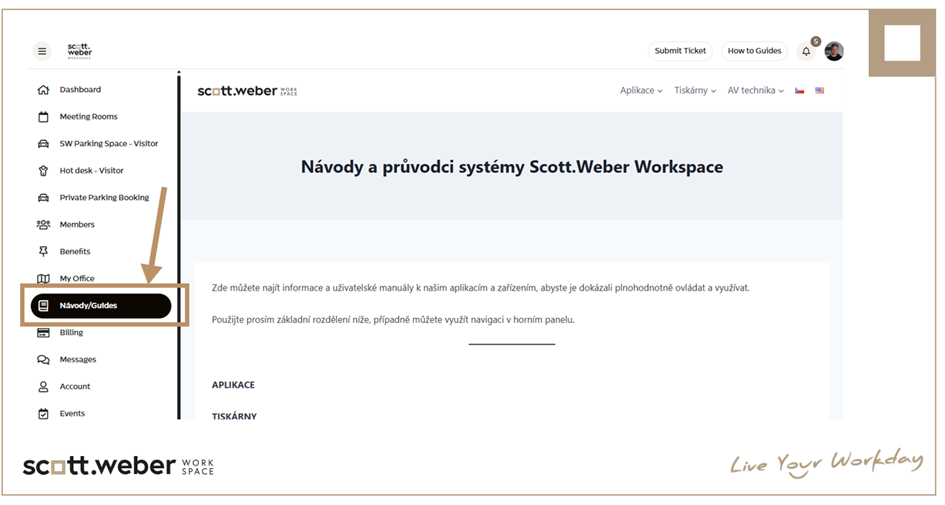
On the left side of the screen, there is a quick link to Scott.Weber guides and manuals that are useful for you.
There you’ll find guides on how to book a meeting room, how to use the Members Portal, as well as the house rules.