
Guide to Connecting to Scott.Weber Printers
1️⃣ Log in to the SafeQ Printing System
Go to the login page:
👉 https://scottweber.eu.ysoft.cloud/login
Use the following credentials:
- 👤 Username: your email address (the same one you use for the SW Members portal)
- 🔐 Password: the same password you use to log in to the SW Members portal ( Forgot password ? )
❗ If you do not have an account in the Members portal, please contact our reception.
After creating an account or changing the password, logging into the printing system will only be possible the following day due to data synchronization. ❗
❗ The password must not contain a backslash (\). If it contains this character, you will not be able to sign in to the SafeQ print client.
2️⃣ Home Page After Login
✅ Download available apps:
- Desktop application for Windows or Mac (download and install)
- Mobile application for iOS or Android (be sure to enter the full domain: scottweber.eu.ysoft.cloud)
💡 After installing the desktop application:
- A printer named „Scott.Weber Print (Konica Minolta)“ will be automatically installed on your device.
- This printer will appear in your standard printer list as a regular printer.
3️⃣ Printer PIN and Access Card
- On the homepage, you’ll find your personal printer PIN.
- To link your access card:
- Go to the printer and place your card on the reader.
- On the screen, choose to log in using your email and password (same as your SW Members portal credentials).
- After successful login, your card will be linked to your account.
4️⃣ Printing via Web Interface
If you prefer not to install the application, you can print directly from the web:
- Log in at: https://scottweber.eu.ysoft.cloud/login
- Click „Upload a document“
- Select the file you want to print
- Confirm the print job
📡 Printing works from any network – including when connected via VPN.
If you see an orange exclamation mark next to the printer icon in the system tray, it means you are signed out.
In this case, right-click on the printer icon and select Sign in… (see screenshots).
Once you sign in again, the printer will automatically reappear in the printer settings and can be used normally.
This security measure automatically signs you out after a certain period of inactivity, so you may need to repeat the sign-in process.

🔐 Password Reset for Printing (SafeQ)
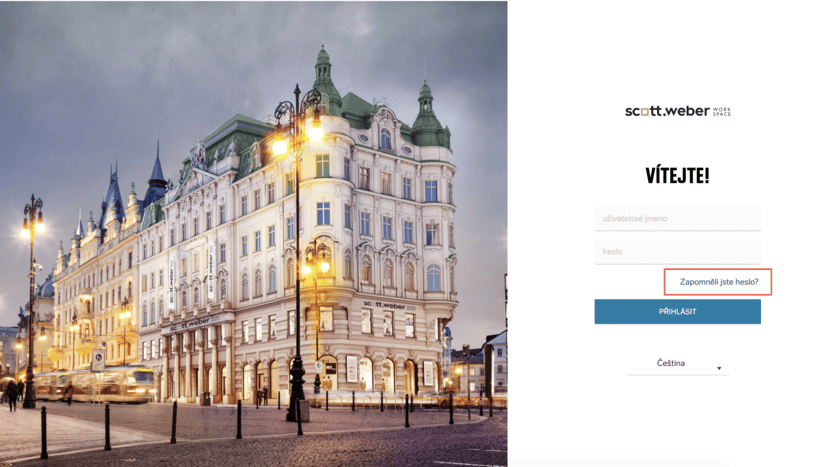
Please do not use the “Forgot your password?” button on the login page.
👉 Instead, use this link:
🔗 Reset your password here
🕒 After resetting your password in the Members Portal, you will be able to log in to the printers the following day due to synchronization.
🔐 SafeQ Cloud – Print Security Overview
Our coworking spaces use the SafeQ Cloud solution to ensure secure and flexible printing. Below is a summary of how your print jobs are protected:
🌍 Where are the print jobs stored?
- All print jobs are temporarily stored in an AWS data center located in Ireland, where our SafeQ Cloud tenant is hosted.
- Your data remains within the EU, fully compliant with GDPR.
🔒 How is communication secured?
- All data transferred from your computer to the cloud (and from the cloud to the printer) is encrypted.
- Secure protocols are used: HTTPS or secure TCP.
- The printer only downloads the job after the user is authenticated directly on the device.
- The connection between the cloud and the printer is secured via device-authenticated HTTPS.
🧾 What happens to the print job?
- The job is securely held in the cloud until the user releases it at the printer.
- Once printed or after a predefined timeout, the print job is automatically deleted.
ℹ️ Need Help?
Feel free to contact our IT support team:
📩 it@scottweber.cz